Pentesting as a use case for Hunchly
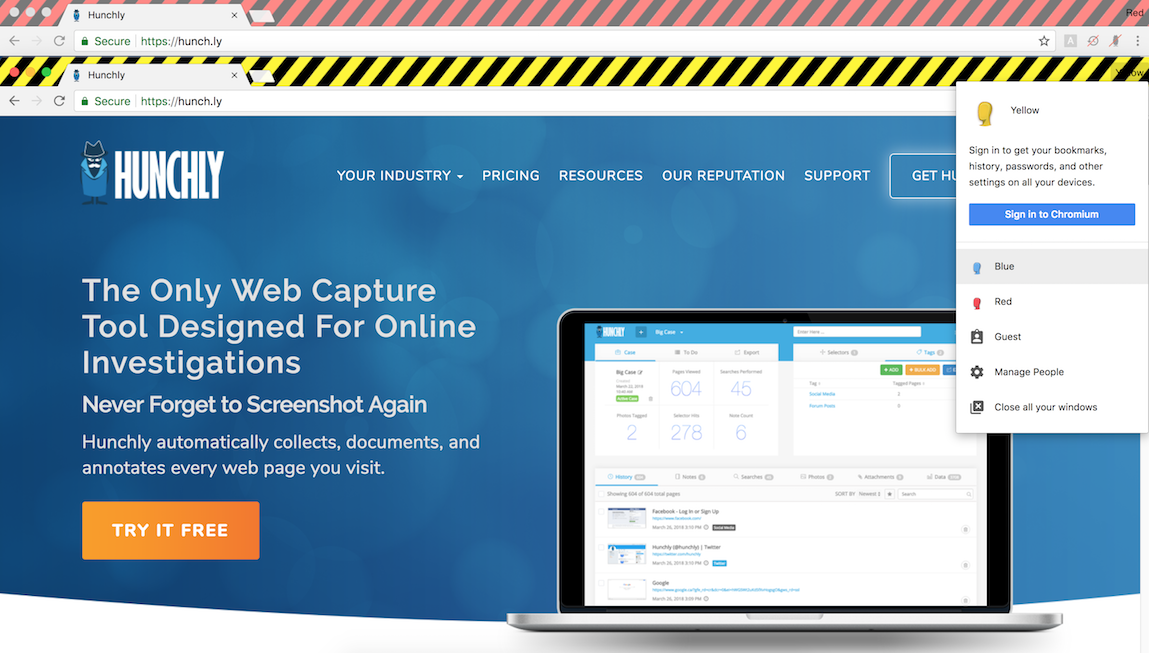 I was told by a friend @gabemarshall that I should write a post about how Hunchly can be used for pentesting. So here it is…
Hunchly works with autochrome and Burp
Hunchly does a great job describing what it’s capable of, so I won’t go through it myself. I do want to say that an initial concern of mine was if Hunchly could support working in autochrome and through a proxy like Burp. It can.
The reason why this was important and why I use autochrome in the first place is that autochrome provides a handful of really convenient tools and functions that help me do my web app pentests more efficiently. It automatically proxies traffic through localhost port 8080, so I only need to fire up Burp to get started. It also allows me to have multiple but distict sessions by selecting a different colored user.
Hunchly support is like few products I have used. I think I’ve contacted them 3 times, and every time they respond with a working solution or answer within a couple hours. When I contacted support about the integration with autochrome failing Phil responded within 2 hours that he would try it out. Within an hour Phil had researched a working solution and responded with detail instructions! Pretty amazing support, not to mention that I was able to then get Hunchly working through Burp so I could proxy my traffic and have screenshots, link flow, and all the metadata in Hunchly. I will detail these steps below.
I have followed Justin Seitz for a few years and went through is OSINT Master Course, so I knew his products are high quality. Justin released Hunchly some time ago, and it seemed to be a really useful tool for a variety of reasons and use-cases. Just recently, I decided to purchase a license and use it for my web app pentesting work.
I guess I didn’t realize how useful of a tool Hunchly is until I started to pitch it to Gabe. As I described what Hunchly does and is capable of, he became more and more interested in using it. Before the end of our conversation, Gabe signed up for a 30 day trial.
Autochrome and Hunchly integration steps
This is Phil’s response verbatim on how to install Hunchly within autochrome:
I was able to make Hunchly work on Autochrome on Linux and Mac OS X.
You can follow these instructions: https://blog.anantshri.info/hunchly-in-chromium/, substituting Chromium for Autochrome where applicable.
Alternately, you can do the installation manually, as I did:
- Install Autochrome
- Install Hunchly
- Remove the proxy flag from /Users/$USER/Applications/Chromium.app/Contents/MacOS/chromium
- Using Autochrome, install the Hunchly browser extension from the Chrome app store: https://chrome.google.com/webstore/detail/hunchly-20/amfnegileeghgikpggcebehdepknalbf
- it won’t work yet, that’s to be expected
- Go to chrome://extensions/, enable developer mode, and record the Hunchly Chrome extension’s ID. Mine was “amfnegileeghgikpggcebehdepknalbf”
- Close Autochrome
- Create this folder: /Users/$USER/Library/Application\ Support/Chromium/NativeMessagingHosts
- Create a file in this folder called “com.hunchlydev.server.json” with the following contents: { “name”: “com.hunchlydev.server”,
“description”: “Hunchly Dev Server”, “path”: “/Applications/Hunchly2.app/Contents/MacOS/HunchlyChromeHandler”, “type”: “stdio”,
“allowed_origins”: [ “chrome-extension://EXTENSIONID/” ] }where EXTENSION-ID is the ID you grabbed in step 5.
- Open Autochrome again. Hunchly should now be installed
In order to get the proxy in autochrome working with Burp, all I had to do was re-enable the proxy line in chromium, and now I’m able to use Burp in conjunction with Hunchly to capture my work. This works especially great for reporting since all of the details of each page as well as how I got to that page are included in Hunchly.
So now there should be no excuse for not at least trying Hunchly out. I think pentesting teams should buy this for all their hackers.